
Report Activities Configuration
This article demonstrates how to create and modify Report Activities that are made available for selection in Property Reports, both Homeowner and Admin reports. Report Activities describe the reason for a property visit.
Select a Property Report Activity
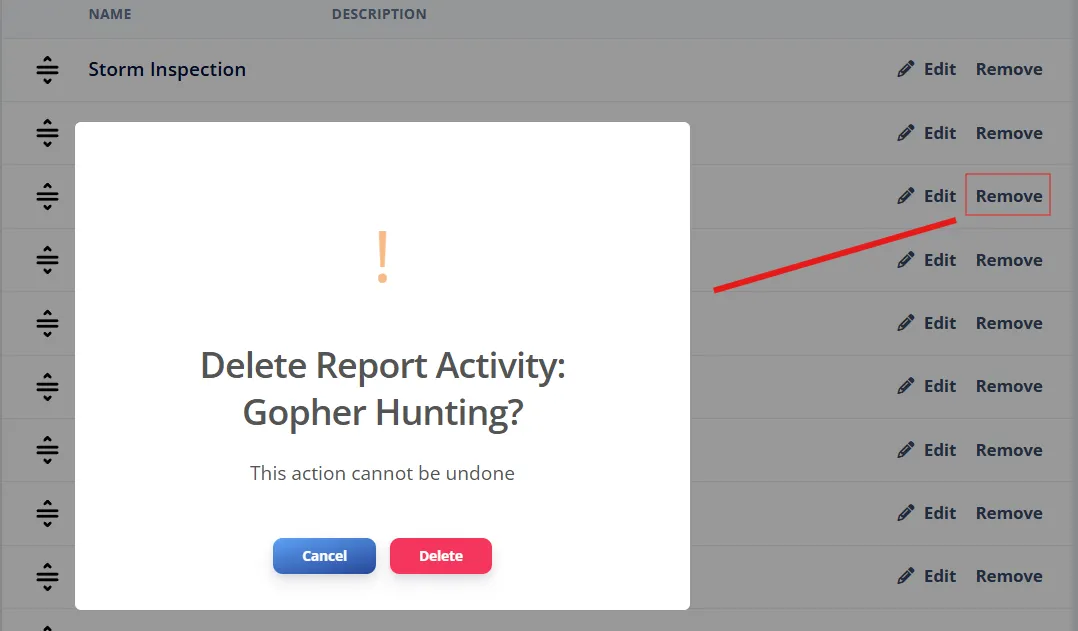
Section titled “Select a Property Report Activity”When you begin a new report, there is a field for report activities labeled Select Activity. This is a drop down field which has a number of options available to you. In the next section we will learn how to add, remove, modify and re-order these options in the drop down.
Add a new Report Activity
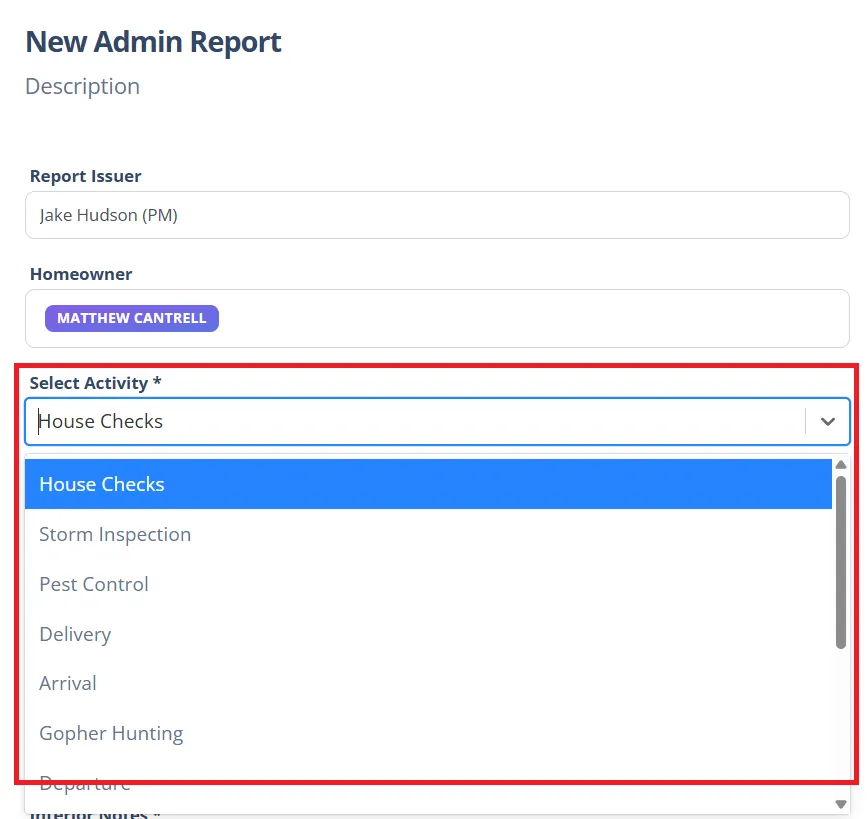
Section titled “Add a new Report Activity”New report activities can be created by navigating to the Settings page. Scroll to the Report Activity section, and click on the Add New button in the top right of this section. This will open the Create new Report Activity modal that will allow you to define a “Name” and “Description” field. Enter the details of your report activity and click the Confirm button to save it. This new report activity is immediately available for selection on future Property Reports.
Edit an existing Report Activity

Section titled “Edit an existing Report Activity”You can modify an existing Report Activity by navigating to the Settings page. Scroll to the Report Activity section and find the entry you would like to modify. Click the corresponding Edit link for that row to open the Edit Report Activity modal. Change the information as you desire and click Confirm. These changes will take effect on all future Property Reports.
Ordering Report Activities in the drop down selection
Section titled “Ordering Report Activities in the drop down selection”The order in which the Report Activities appear in the drop down selection on the Property Report creation page can be defined using the settings page. Navigate to the Settings page and scroll to the Report Activity section. The order of the items in this list indicates the order in which they will appear in the drop down selection box on the Property Report creation page. To change the order, click the icon on the left side of the option row and drag the options into the desired order.
Remove a Report Activity

Section titled “Remove a Report Activity”You can remove an existing Report Activity by navigating to the Settings page. Scroll to the Report Activity section and find the entry you would like to modify. Click the corresponding Remove link for that row to open the Confirmation modal. Confirm your deletion by clicking Delete. Deleting a Report Activity cannot be undone, but you may recreate the activity by following the steps for Add a new Report Activity.